
Getting multiple GitHub accounts on one Windows machine – 2026 update
Introduction
I wrote the original version of this blogpost back in 2022 and then an updated 2023 version which simplified things by using SSH commit signing instead of GPG.
Since then, my setup has changed quite a bit. I moved from Linux/WSL to native Windows and started storing my SSH keys in 1Password instead of as local files. The 2023 solution relied on ssh-agent and core.sshCommand which worked but had an annoying problem: 1Password’s SSH agent would offer all of its keys in order and I had to manually deny the wrong ones before it tried the correct one.
In this updated post, I want to summarize how I solved that problem using SSH host aliases, IdentitiesOnly, and URL rewrites so that the correct key is used automatically every time.
Please read it carefully as there are some fixes and some updated gotchas! 😀
Git your configuration on
The setup
Git the right version number
Note that I am using Git for Windows rather than the git that comes with WSL. Make sure you have a reasonably recent version installed as some of the features used here (like SSH commit signing) require version 2.34 or higher.
Let me Google that for you
My primary resources for how to get the multiple users set up was a combination of the following two links which were really useful but I got caught in a few issues on the way, (not necessarily the fault of the posts through).
- https://www.freecodecamp.org/news/manage-multiple-github-accounts-the-ssh-way-2dadc30ccaca/
- https://blog.gitguardian.com/8-easy-steps-to-set-up-multiple-git-accounts/#stepbystep
The first thing I liked from the GitGuardian link was having two separate paths for Work and Personal projects using two separate GitHub identities.
Based on their instructions, I created “Work” and “Personal” folders, created the relevant ssh keys (now stored in 1Password) and then the relevant configuration files. Each identity has its own folder on disk and its own per-directory gitconfig loaded via includeIf in the main ~/.gitconfig. Obviously I also had to copy my ssh public keys into the relevant page of the GitHub UI for each account.
If you want to sign commits using the same SSH key you use for authentication, note that you will need to upload it twice in the GitHub UI. Once as an authentication key and once as a signing key.
Git configuration files
Here are the git configurations I ended up with. I will add some more information about parts of them below. Note that the heading within which each configuration line sits is important.
# ~/.gitconfig

[includeIf "gitdir:C:/Users/josh/Documents/Personal/"]  #redacted path
path = C:/Users/josh/Documents/Personal/.pers.gitconfig  #redacted path

[includeIf "gitdir:C:/Users/josh/Documents/Work/"]  #redacted path
path = C:/Users/josh/Documents/Work/.work.gitconfig  #redacted path

[core]
excludesfile = ~/.gitignore
sshCommand = C:/Windows/System32/OpenSSH/ssh.exe
autocrlf = true
Note that I am using Windows-style paths in the includeIf sections. I am also specifying sshCommand globally to use the Windows OpenSSH client since 1Password’s SSH agent integrates with it.
# ~/Work/.work.gitconfig

[user]
email = josh@acmesecurity.com  #redacted email address
name = joshacmesecurity  #redacted username
signingkey = ssh-ed25519 AAAA...ilry  #redacted public key

[github]
user = joshacmesecurity  #redacted username

[gpg]
format = ssh  #specifies that we want to use ssh signing

[gpg "ssh"]
program = "C:/Users/josh/AppData/Local/Microsoft/WindowsApps/op-ssh-sign.exe"  #redacted path

[commit]
gpgsign = true  #should force signing on commits

[core]
sshCommand = C:/Windows/System32/OpenSSH/ssh.exe

[url "git@github-work:"]
insteadOf = git@github.com:
# ~/Personal/.pers.gitconfig

[user]
email = jzzzzzzzzz@hotmail.com  #redacted email address
name = tghosth  #username
signingkey = ssh-ed25519 AAAA...R7pY  #redacted public key

[github]
user = tghosth  #username

[gpg]
format = ssh  #specifies that we want to use ssh signing

[gpg "ssh"]
program = "C:/Users/josh/AppData/Local/Microsoft/WindowsApps/op-ssh-sign.exe"  #redacted path

[commit]
gpgsign = true  #should force signing on commits

[core]
sshCommand = C:/Windows/System32/OpenSSH/ssh.exe

[url "git@github-personal:"]
insteadOf = git@github.com:
A few things to note about these configuration files:
-
signingkeyis set to the actual SSH public key from 1Password. Git uses this together with theop-ssh-sign.exeprogram from 1Password to sign commits. -
core.sshCommandpoints to the Windows OpenSSH client. The correct key selection for each identity is handled by the SSH config (explained below). -
The
urlrewrite section at the bottom of each per-directory gitconfig is the magic that makes everything work automatically (more on this shortly).
Git Gotchas
There were a couple of issues at this stage that had me scratching my head for a while during various iterations of doing this so I thought I would preserve them for posterity!
Browsing to the wrong path
Since I am using Windows paths in includeIf, the configuration will only work if I navigate to the repository using the same path style. If I somehow browse to the same folder via a different path (e.g. a mapped drive or a symlink), the includeIf won’t match and the wrong identity might be used.
Wrong file names
I had used dots in my file names for the personal and work configuration files whereas the main configuration file from the GitGuardian link used hyphens. This took me longer than I care to admit to figure out… This was certainly a PEBKAC issue.
Messed up double quotes
I was getting parsing errors for a very long time on my main configuration file. I tried all sorts of things including not using soft-links but using the full paths from the root instead. After much faffing, I realised that when I copied the same configuration files from the GitGuardian site, it had used “curly double quotes” instead of the regular double quotes and this was tripping up git 🤦♂️.
SSH authentication and Signing
The problem with 1Password’s SSH agent
1Password has a great SSH agent feature that stores your SSH keys securely and provides them to SSH when needed. The problem is that when you have multiple keys, the agent offers all of them in sequence. For every git operation, I would get prompted to deny the wrong keys before the right one was tried. This was really annoying.
The solution: SSH host aliases with IdentitiesOnly
The fix involves three pieces working together: public key files, SSH host aliases, and URL rewrites.
1. Public key files (~/.ssh/)
I exported the public key for each identity from 1Password into its own file in ~/.ssh/:
~/.ssh/personal_github.pub~/.ssh/work_github.pub
These are the same public keys that appear in each gitconfig’s signingkey field. They are used by SSH to tell the 1Password agent which private key to use, without the private key ever leaving 1Password.
2. SSH config (~/.ssh/config)
I created host aliases which are fake hostnames that SSH resolves to the real server but with a specific key pinned:
Host github-personal
    HostName github.com
    User git
    IdentityFile C:/Users/josh/.ssh/personal_github.pub  #redacted path
    IdentitiesOnly yes

Host github-work
    HostName github.com
    User git
    IdentityFile C:/Users/josh/.ssh/work_github.pub  #redacted path
    IdentitiesOnly yes
The key setting here is IdentitiesOnly yes. This tells SSH to only offer the key specified by IdentityFile, instead of letting the agent offer everything it has. Combined with pointing IdentityFile at the public key file, SSH tells the 1Password agent exactly which private key it needs.
3. URL rewrites in per-directory gitconfigs
Each folder’s gitconfig already gets loaded via includeIf in ~/.gitconfig. The URL rewrite section in each one handles the final piece:
[url "git@github-work:"]
insteadOf = git@github.com:
This makes Git silently rewrite git@github.com: to git@github-work: for any repo under that folder. So when you clone, fetch, or push with a normal GitHub SSH URL, Git transparently routes it through the correct SSH host alias, which uses the correct key.
You never need to type github-work yourself. Just use the normal SSH URL from GitHub and everything works.
How it all connects
Here is what happens when you run a git operation in the Work folder:
flowchart TD
    A["git fetch\n(in Work/ folder)"] --> B["gitconfig URL rewrite\ngit@github.com: → git@github-work:"]
    B --> C["SSH config lookup\ngithub-work → github.com + work key only"]
    C --> D["1Password agent\nasked for that specific key"]
    D --> E["✅ No more 'deny the wrong key' prompt"]
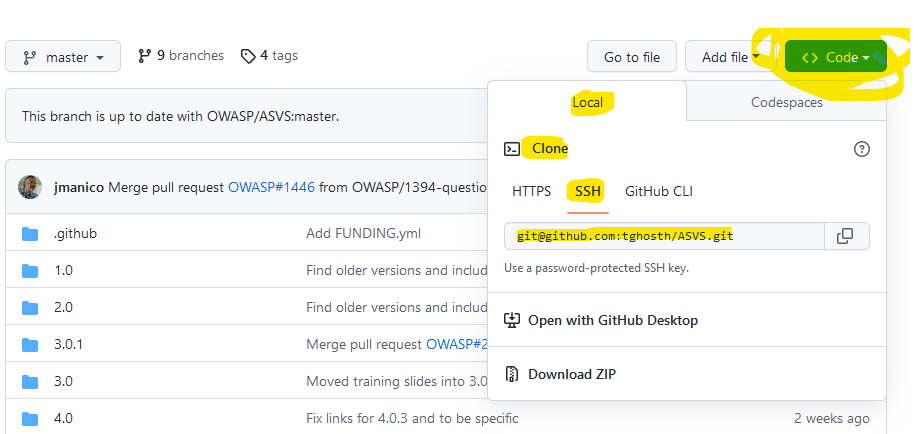
This means cloning is now a single step too. I just copy the SSH URL from GitHub, run git clone in the correct folder, and the URL rewrite ensures the right key is used automatically.
You can see the correct clone link for SSH in this image:
Signing Commits
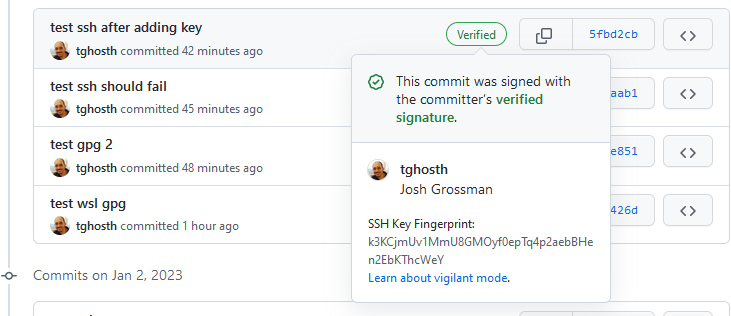
If you followed the instructions above, commit signing should work seamlessly. The per-directory gitconfig tells git to force signing (gpgsign = true), to use SSH format (format = ssh), and which public key to sign with (signingkey). The op-ssh-sign.exe program from 1Password handles the actual signing using the private key stored in 1Password.
No GPG, no ssh-agent, no passphrases to enter. 1Password handles it all. If it is all working you should see the commits as verified in GitHub.
In closing
Thanks for reading, I hope this is a useful summary and makes it easier for you to set up this functionality. If you have comments or feedback, the easiest option is to reach out to me on Bluesky, Mastodon, Twitter, or LinkedIn!