Running two Claude Code accounts on one Windows PC (without them fighting)
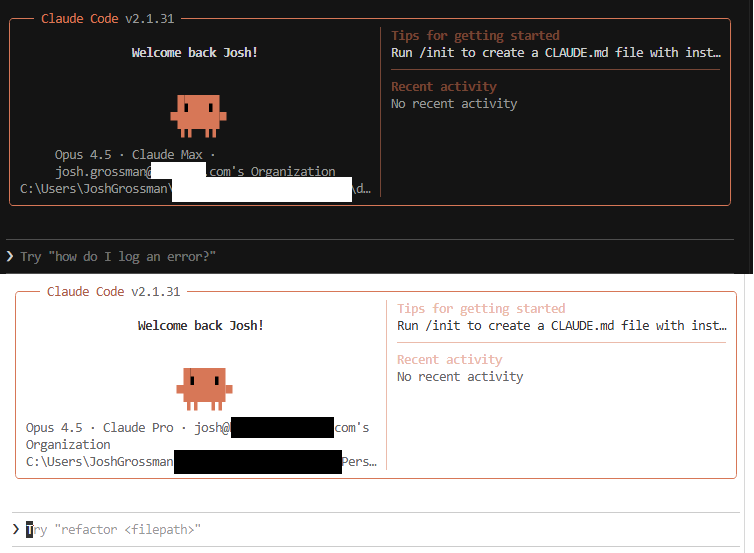
I wanted to run Claude Code under two different accounts (let’s call them .claude-personal + .claude-work) on the same Windows machine, simultaneously.
On paper, this should be easy: there’s guidance floating around that suggests setting the CLAUDE_CONFIG_DIR environment variable so each instance uses a different “home” or “config” directory.
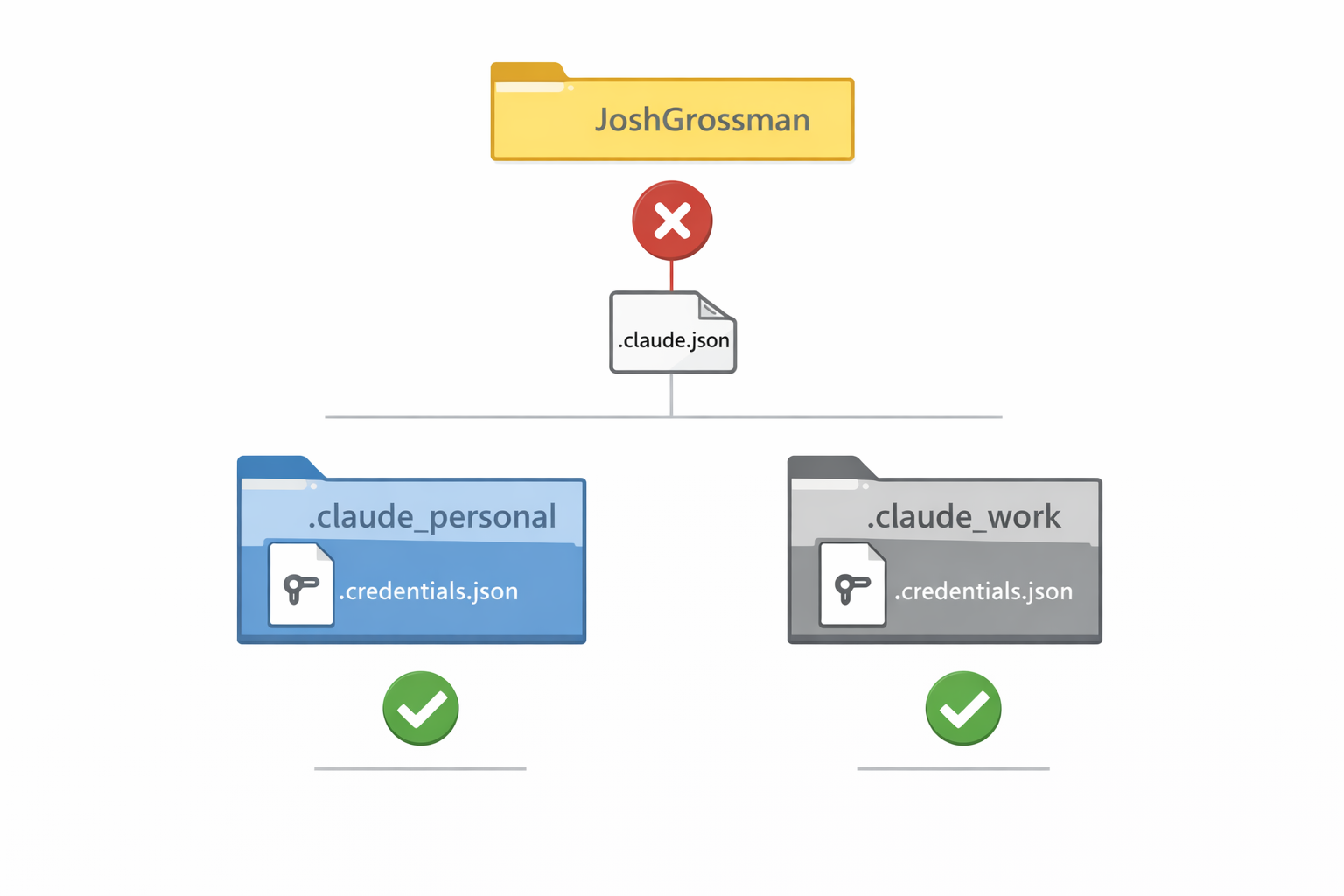
However, in reality, Claude Code doesn’t only store state under ~\.claude\. It also keeps global state right in ~\.claude.json. This means that when both instances share the same real home directory, they will inevitably step on each other.
Rather than wrestle with extensions and ad-hoc env vars or other weird copying solutions, I made each instance run with a fully separate home directory, to avoid conflict plus a couple of symbolic links to avoid duplicating binaries and tool state.
Here’s what I did (obviously with Claude’s help).
What was conflicting?
Claude Code maintains a mix of:
- Project settings:
.claude\settings.json/.claude\settings.local.jsoninside a repo - Global settings: Mostly stored inside
~\.claude\including files and folders such as.credentials.json,file-history,plugins,tasks, etc.
Why mostly? Because it also stores config inside ~\.claude.json. When you try to run two accounts against the same ~ (home) directory, even when you specify different config directories, this file becomes the shared point of failure.
Step 1: Use the native installation for Claude
I followed the instructions from here to do a native PowerShell install of Claude.
Maybe you can make it work in other ways as well, but this seemed simplest and should hopefully ensure automatic updates keep working.
Step 2: Stop relying on the IDE extension
This was the first pragmatic decision.
The IDE extensions felt janky for this specific setup, and I couldn’t get them to consistently respect the environment overrides anyway.
So I disabled the extension entirely and ran Claude Code from a terminal inside the IDE. I haven’t yet missed the lack of IDE integration…
Step 3: Create a dedicated “home” per account
I’m using PowerShell as my primary shell, so I added a helper function to my PowerShell profile.
Where is the PowerShell profile?
For PowerShell 7+ on Windows, the common path is:
$HOME\Documents\PowerShell\Microsoft.PowerShell_profile.ps1
You can also just print your actual profile path:
$PROFILE
The idea
Create two folders like:
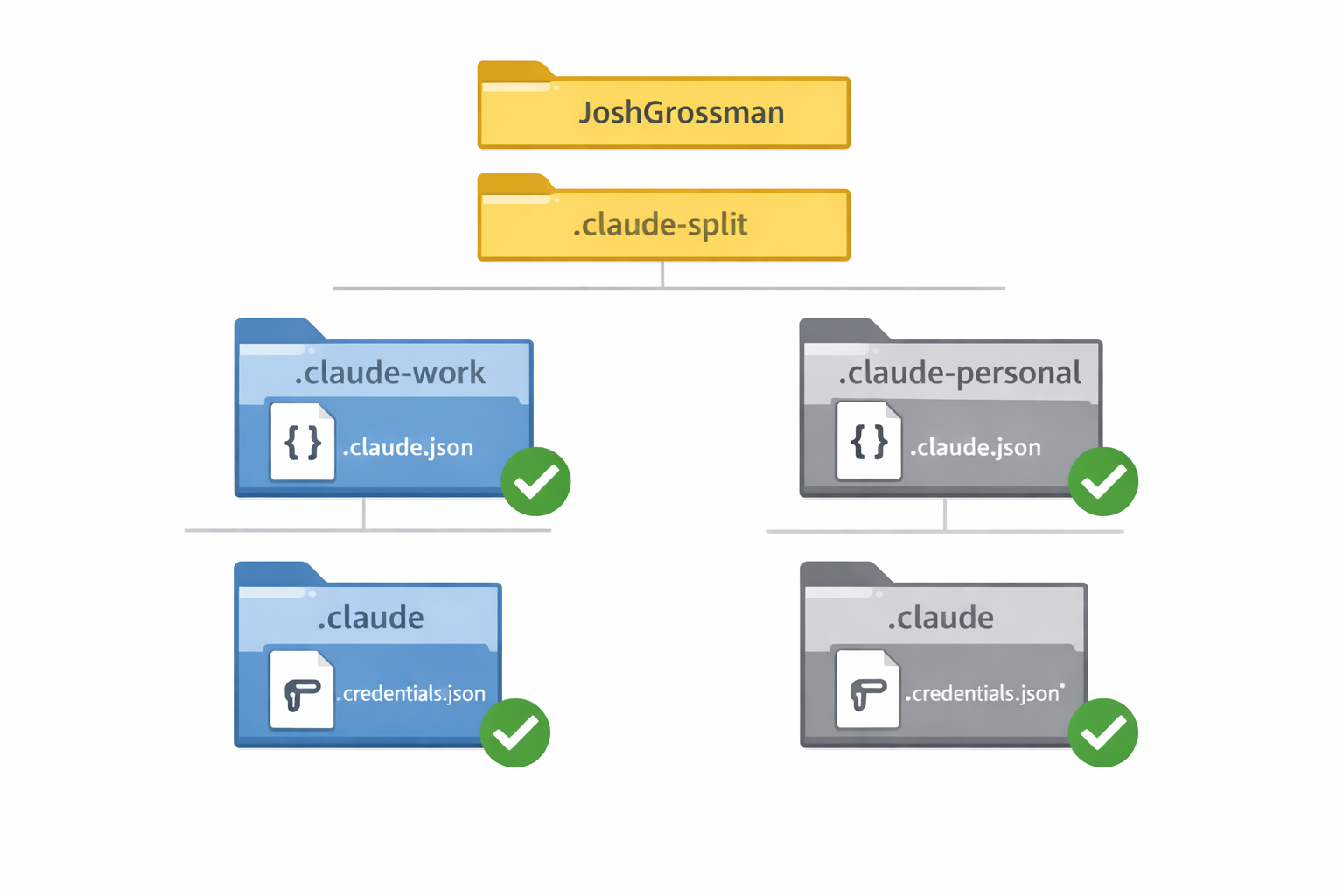
C:\Users\<you>\.claude-split\.claude-personal\C:\Users\<you>\.claude-split\.claude-work\
Then, when starting Claude Code, set environment variables so the process believes that folder is home.
The variable that seems to matter on Windows is $USERPROFILE.
The path variable
Claude will also expect to find claude.exe at ~\.local\bin\claude.exe. I had hoped to do something funky with symbolic links to the original install to avoid multiple copies of claude.exe. In practice, I could not make it work, because the symlink seemed to keep getting overwritten by the actual executable. If you manage to do it, please let me know 😀.
Example: PowerShell launcher functions
In order to automate this, add something like this to your PowerShell profile:
function Invoke-ClaudeWithProfile {
    [CmdletBinding()]
    param(
        [Parameter(Mandatory = $true)]
        [ValidateNotNullOrEmpty()]
        [string]$ProfileName,

        [Parameter(ValueFromRemainingArguments = $true)]
        $ClaudeArgs
    )

    # Build the base directory, fake home directory,
    # and profile-specific bin directory Claude will use.
    $baseDir = Join-Path $env:USERPROFILE ".claude-split"
    $targetPath = Join-Path $baseDir $ProfileName
    $profileBin = Join-Path $targetPath ".local\bin"

    # Create the fake home directory and the fake claude directory
    New-Item -ItemType Directory -Path $profileBin -Force | Out-Null

    # Store the current user home and path variables
    $oldUserProfile = $env:USERPROFILE
    $oldPath = $env:PATH

    try {

        # Set the USERPROFILE variable to our fake directory
        $env:USERPROFILE = $targetPath
        # Add the fake Claude directory to the PATH variable
        $env:PATH = "$profileBin;$env:PATH"
        Write-Host "--- Claude Instance: [$ProfileName] ($targetPath) ---" -ForegroundColor Cyan

        # Run claude (with these variables set) and whatever arguments were passed
        & claude @ClaudeArgs
    }
    finally {

        # Return the USERPROFILE and PATH variables back to their
        # previous values when claude exits
        $env:USERPROFILE = $oldUserProfile
        $env:PATH = $oldPath
        Write-Host "--- Profile Restored ---" -ForegroundColor Gray
    }
}
Some subtleties about what is happening here
When you run this function for the first time (assuming we are running it for .claude-personal), this is what happens:
-
We add our fake home directory to
PATH. -
PowerShell looks for
claude.exeatC:\Users\<you>\.claude-split\.claude-personal\.local\bin\claude.exe, but it won’t find it because it doesn’t exist yet. -
PowerShell then looks for
claude.exeatC:\Users\<you>\.local\bin\claude.exe, which the original Claude install put on the system path. It should find it and run it. -
Since the fake home directory is set, Claude itself expects
claude.exeatC:\Users\<you>\.claude-split\.claude-personal\.local\bin\claude.exe, doesn’t find it, and downloads a fresh copy to that location.
On subsequent uses of this function, it immediately uses claude.exe at C:\Users\<you>\.claude-split\.claude-personal\.local\bin\claude.exe.
Aside from duplicating .exe files, one downside is that C:\Users\<you>\.local\bin\claude.exe may not get updated if you always launch Claude through profile functions. In practice, that should not be a major issue in this setup.
Step 4: Calling this function
You would then create shortcut functions for each separate Claude instance you want to run.
So for example, I might have:
function claude-work {
    Invoke-ClaudeWithProfile -ProfileName ".claude-work" @args
}

function claude-personal {
    Invoke-ClaudeWithProfile -ProfileName ".claude-personal" @args
}
This forces each instance to have its own:
~\.claude.json~\.claude\...
…beneath the fake home folder we defined, which should prevent cross-account corruption.
Step 5: Fix the weird side effects with symbolic links
Once you “fake” a different home directory, some tools start looking for binaries and configs in places you didn’t expect.
To avoid maintaining duplicate copies (and to keep tools happy), I created some symlinks. In the end, the only one I kept was for the glab-cli config directory, as the others either didn’t work out or were not necessary. You may need to do something similar for other CLI tools you use.
As I noted above, I tried doing this for claude.exe, but it didn’t work out, so I have to live with some duplication there.
Important: On many Windows setups, creating symlinks requires an elevated PowerShell session (Run as Administrator). Some machines allow Developer Mode symlinks without elevation, but assume you’ll need admin unless you know otherwise.
Symlink for GitLab CLI config
I had to do this for GitLab CLI (glab).
On Windows, glab stores its config under:
%LOCALAPPDATA%\glab-cli\(includingconfig.yml)
(At least in my installation.)
With our fake home directories, we may want each Claude profile to see the same glab state.
Run in elevated PowerShell:
$realGlabDir = Join-Path $env:LOCALAPPDATA "glab-cli"
$homeGlabDir = "C:\Users\<you>\.claude-split\.claude-work\AppData\Local\glab-cli"

New-Item -ItemType Directory -Force -Path (Split-Path $homeGlabDir) | Out-Null
New-Item -ItemType SymbolicLink -Path $homeGlabDir -Target $realGlabDir
GitHub CLI note
Interestingly, I didn’t have to add extra symlinks for GitHub tooling in my setup. It just worked with Claude having the fake home directory…
Current status
So far, I haven’t found any unwanted side effects.
There may be additional state Claude Code relies on that could get confused in edge cases, but for now, this approach has been stable: two accounts, one Windows PC, no cross-contamination.
Let me know how you get on and if you find any bugs!